
Apple stripped the MacBook down to almost nothing but USB-C ports, and at first that felt like a punishment. No more plugging in an old flash drive, no HDMI cable without an adapter, no card reader unless you paid extra for the Pro. But once you get used to it, USB-C turns out to be the best thing that happened to the Mac lineup in years. One port type handles charging, external displays, storage, and accessories. The catch is that a MacBook user still needs the right USB-C gadgets to actually take advantage of that flexibility.
I have used a MacBook Air as my daily driver for the past few years, after switching over from Windows laptops that I used for over a decade. The adjustment period taught me a lot about what a MacBook user actually needs versus what marketing pages try to sell you. Some USB-C accessories are genuinely useful. Others are a waste of a port. This article covers five categories of gadgets that solve real problems for a MacBook user, based on hands-on use rather than spec sheet reading.
Why Every MacBook User Eventually Needs A Docking Station
The MacBook Air gives you exactly two USB-C ports. That is it. If you plug in a charger on one side, you are left with a single port for everything else, whether that is an external drive, a monitor cable, or a mouse dongle. A MacBook user who works from a desk most days will hit this wall fast.
A USB-C docking station solves the problem by turning one port into many. You plug the dock into your MacBook, and suddenly you have HDMI for a monitor, a couple of USB-A ports for older peripherals, an SD card slot if you shoot photos, and pass-through charging so your laptop still gets power. I run a compact dock at my desk that outputs 4K to my monitor and charges the Air at close to full speed through a single cable. The moment I sit down, one connection handles displays, accessories, and power together.
For a MacBook user who only occasionally connects to external displays, a smaller and cheaper hub is usually enough. If you are running dual monitors or juggling multiple input devices, a larger docking station with more ports is worth the extra cost. Either way, this is usually the first accessory a new MacBook user buys, often within the first month of ownership.
1: Power Banks Built For USB-C Charging Matter
MacBook battery life is genuinely good. For writing, browsing, and everyday office work, you can get through most of a workday without needing an outlet. But eventually the battery runs low, and not every MacBook user wants to sit near a wall socket waiting for a charge.
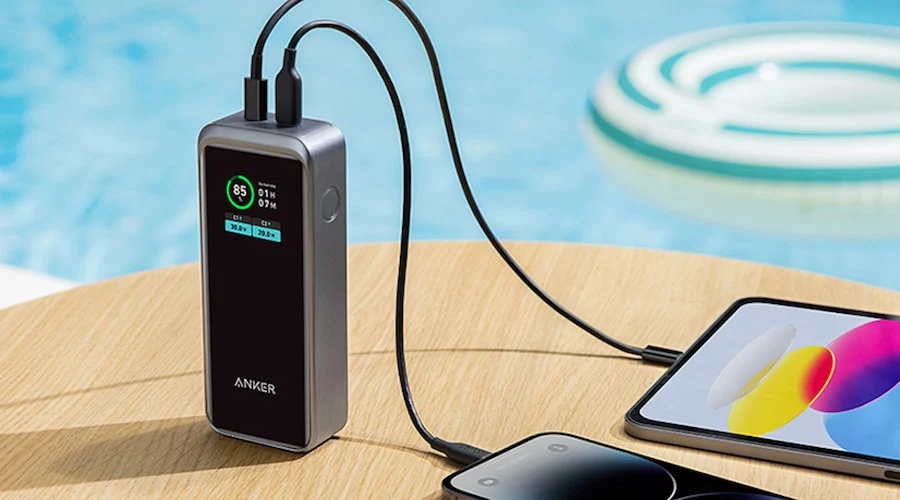
This is where a proper USB-C power bank earns its keep. Not every portable charger can actually push enough wattage to charge a laptop at a reasonable speed. You want one that supports Power Delivery, ideally at 100 watts or higher, so it can top up your MacBook nearly as fast as the wall charger would. A power bank with a decent capacity, in the 20,000 mAh range or higher, can get a MacBook from low battery back to a comfortable level while you are on a train, in a coffee shop, or halfway through a flight.
I keep one in my bag permanently now. It has saved me more than once during long work sessions away from home, and it doubles as a charger for my phone and earbuds, so it is not a single-purpose gadget taking up space. For any MacBook user who works outside the house regularly, this is not a luxury item; it is closer to a necessity.
2: External Storage Fixes The One Thing Apple Refuses
Here is something every MacBook user learns the hard way eventually: you cannot upgrade the storage after you buy it. Whatever SSD capacity you chose at checkout is what you are stuck with for the life of the machine. Apple charges a steep premium for every storage tier, and base models still ship with a modest amount of space once the operating system and apps take their share.
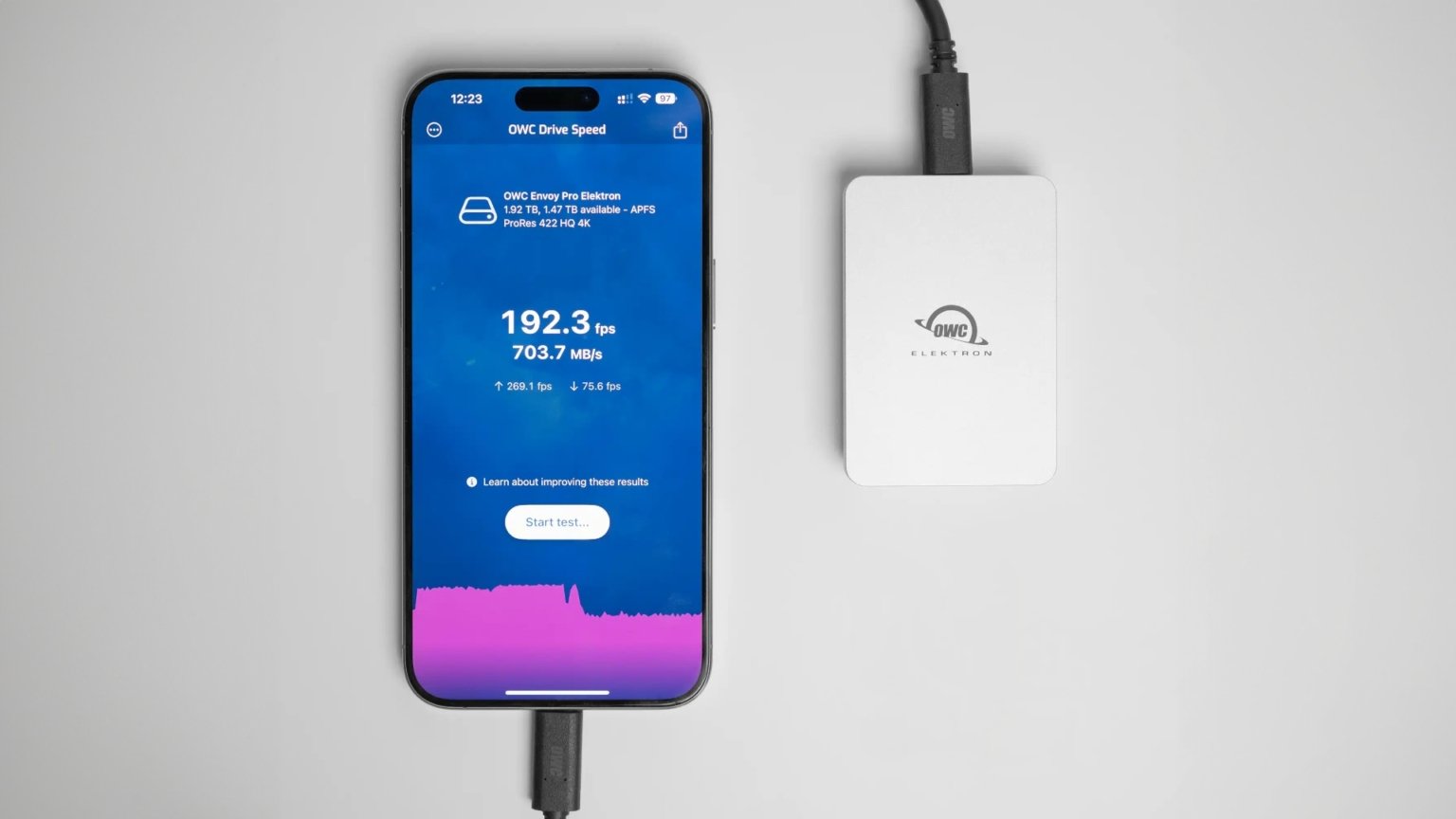
A USB-C external SSD is the practical workaround. Modern portable drives are small enough to fit in a pocket, fast enough to edit video directly off them, and priced far more reasonably than an Apple storage upgrade. I use mine for backups and archived project files, but I also know plenty of people who work directly off an external drive for photo or video editing because their internal storage filled up within the first year.
The speed difference matters here too. Because the USB-C ports on recent MacBooks support high transfer speeds, a good external SSD does not feel like a bottleneck. Large files move in seconds rather than minutes. For any MacBook user dealing with big media files, a portable SSD is one of the more painless upgrades you can make without opening up the laptop, which of course you cannot do anyway.
3: A Portable Monitor Changes
MacBook screens are excellent, but even a 15- or 16-inch display starts to feel cramped once you are juggling several windows, spreadsheets, or a code editor next to reference material. At home, a full-sized external monitor is the obvious fix. On the road, that is where a portable monitor comes in.
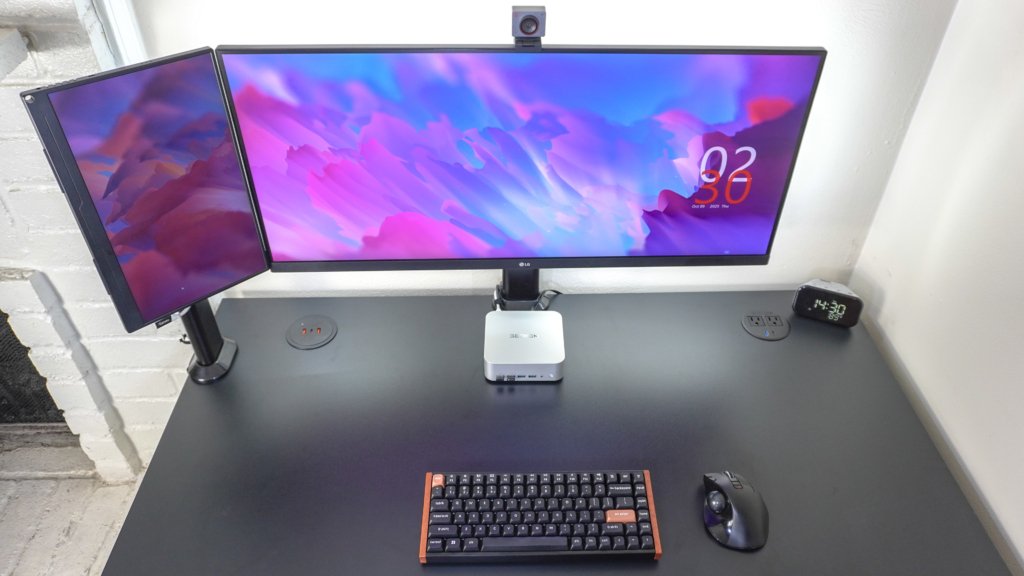
These are lightweight secondary displays that connect over a single USB-C cable, drawing both power and video signal from the laptop. No separate power brick needed. A MacBook user who travels for work or studies away from a fixed desk can set one up next to their laptop and instantly double their usable screen space. I have used one during longer trips, and it made a noticeable difference in how much I could get done compared to squeezing everything onto one screen.
Some portable monitors even support touch input, which is something Apple still has not brought to the MacBook itself. If your workflow benefits from tapping and swiping directly on a screen, that is worth checking for when you shop around, since not every model includes it.
4: The Small Peripherals A MacBook User

Beyond the big ticket items, there is a group of smaller USB-C accessories that quietly improve daily use. A mechanical keyboard with proper Mac-specific keys makes typing sessions more comfortable, especially if you are used to a full-sized layout rather than the compact MacBook keyboard. A precision mouse designed with macOS gestures in mind beats the trackpad for detailed work like photo editing or spreadsheet navigation.
Webcams and microphones fall into this category too. The built-in camera on newer MacBooks is decent, but a MacBook user who spends a lot of time on video calls will notice the jump in quality from an external webcam with a wider field of view and better low-light performance. The same goes for audio. A basic USB-C microphone makes a real difference if you record calls, podcasts, or voice notes regularly, since built-in laptop microphones tend to pick up more room noise than people expect.
None of these are essential in the way a charger or a dock is, but they are the accessories that make working on a MacBook feel less like tolerating limitations and more like a setup built around how you actually work.
Editor’s Choice Picks Worth Prioritizing First
If you are a MacBook user trying to decide where to start, prioritize in this order. Get a docking station first if you work from a desk, since it solves the port shortage immediately. Add a USB-C power bank next if you are ever away from outlets for long stretches. From there, external storage and a portable monitor depend on your specific workflow, whether that is media work or needing extra screen space on the move. In our Editor’s Choice ranking, the docking station and power bank combination tends to deliver the most everyday value for the money, since they solve problems nearly every MacBook user runs into regardless of profession.
Getting The Most Out Of USB-C Gadgets As A MacBook User
The shift to USB-C only was a rough transition for a lot of people, myself included when I first switched over. But once you build out the right set of accessories, it turns out to be a more flexible system than the mix of proprietary ports older laptops used to have. A single cable standard means fewer dongles cluttering your desk drawer and more accessories that work across your phone, tablet, and laptop at once.
Not every MacBook user needs all five categories covered here. Someone who works entirely from a home office has different priorities than someone who travels constantly. But understanding what each type of gadget solves makes it much easier to figure out which ones are actually worth buying for your situation, rather than picking accessories at random and hoping they fit your workflow.
Before buying anything, it is worth checking the wattage and speed specifications closely. USB-C is a shape, not a guarantee of performance, and cables or accessories can vary quite a bit in what they actually support. A little research before checkout saves a MacBook user from ending up with a gadget that looks right but underdelivers in practice.